
All Activity
- Past hour
-

Hibernator PC
Macsusc replied to Cat_Dad8311's topic in PC Giveaway Community's Build & Technical Help
@Cat_Dad8311 do not give up, everything in life takes a bit of effort, this type of stuff happens to everyone, we just need to get through it together and we will. We can order you new RAM we just need to confirm that the RAM is dead, the computer initially booted up for you and went into a Windows update correct? It is very strange that the RAM would have suddenly had a fault after this. We just need to make sure that the RAM 100% needs to be replaced before we make the order for you. Can you confirm that you were taking the RAM out and reseating it with the computer OFF before turning it ON again? @AlmightyWaffles can you please double check the motherboard manual to confirm which slots the RAM should be seated in? Also check the manual for any other reasons the DRAM can be lighting up. - Today
-
 jeremiah_caspersen joined the community
 -
 lysa_sand joined the community
 -
 shanemorrison96baby joined the community
 -
 troysommers2 joined the community
 -
 g joined the community
 -
 tiname18 joined the community
 -
 kelliechang89 joined the community
 -

First player to level 90 gets $100!
Razboss commented on Macsusc's blog entry in World of Warcraft's Giveaway News
1st -
 Evolution85#1878 joined the community
 -
 Broken Moon Denier joined the community
 -
 toxic#2825 joined the community
 -

First 2 players to reach 100 in both primary professions - $50
Bouncingdan commented on Macsusc's blog entry in World of Warcraft's Giveaway News
Thank you thank you -
First player to level 90 gets $100!
Bouncingdan commented on Macsusc's blog entry in World of Warcraft's Giveaway News
Thank you so much. I received it -
First 2 players to reach 100 in both primary professions - $50
Bouncingdan commented on Macsusc's blog entry in World of Warcraft's Giveaway News
-
As the title says, let's get some profession gods in here 🙂 Claimed by BouncingDan - Babydrak
-
First player to level 90 gets $100!
Bouncingdan commented on Macsusc's blog entry in World of Warcraft's Giveaway News
- Yesterday
-

Hibernator PC
Cat_Dad8311 replied to Cat_Dad8311's topic in PC Giveaway Community's Build & Technical Help
I have tried each stick one at a time the light never changes ita really weird day one I got it to boot went to bed that night it said had to update before shutting down which is cool then the next morning when I tried turning it on thats what happened but to be honest thats the way it goes for me. I have the type of life that is all lemons lol but I appreciate the help but I think im just gonna call it for a bit. -

Hibernator PC
AlmightyWaffles replied to Cat_Dad8311's topic in PC Giveaway Community's Build & Technical Help
Next step would be 1. Test RAM Individually Remove all RAM sticks except one Try that single stick in each RAM slot one at a time If it works in one slot but not others, you may have a bad slot If none work with that stick, try a different stick If after trying both modules in every slot and the DRAM light is still not working, then it is a strong possibility there is something wrong with the RAM. However I still doubt this to be the issue, as RAM is usually a pretty solid component in a PC. - Last week
-
First player to level 90 gets $100!
Cat_Dad8311 commented on Macsusc's blog entry in World of Warcraft's Giveaway News
Go get em folks -
First player to level 90 gets $100!
Macsusc posted a blog entry in World of Warcraft's Giveaway News
Kicking off the expansion with our first giveaway! - Claimed by Bouncingdan - "BabyBubble" - 100 USD -
Perfect! We have started the guild, let me know when you want an invite! We are doing the first giveaway which is first one to 90 get's $100 🙂 I'm playing a mechagnome hunter, likely with engineering as a prof 🙂
-
Hibernator PC
Cat_Dad8311 replied to Cat_Dad8311's topic in PC Giveaway Community's Build & Technical Help
And thx for that one pic helped getting the fan off -
Hibernator PC
Cat_Dad8311 replied to Cat_Dad8311's topic in PC Giveaway Community's Build & Technical Help
Okay i did that also tried removing one at a time the light is still there -
Hibernator PC
AlmightyWaffles replied to Cat_Dad8311's topic in PC Giveaway Community's Build & Technical Help
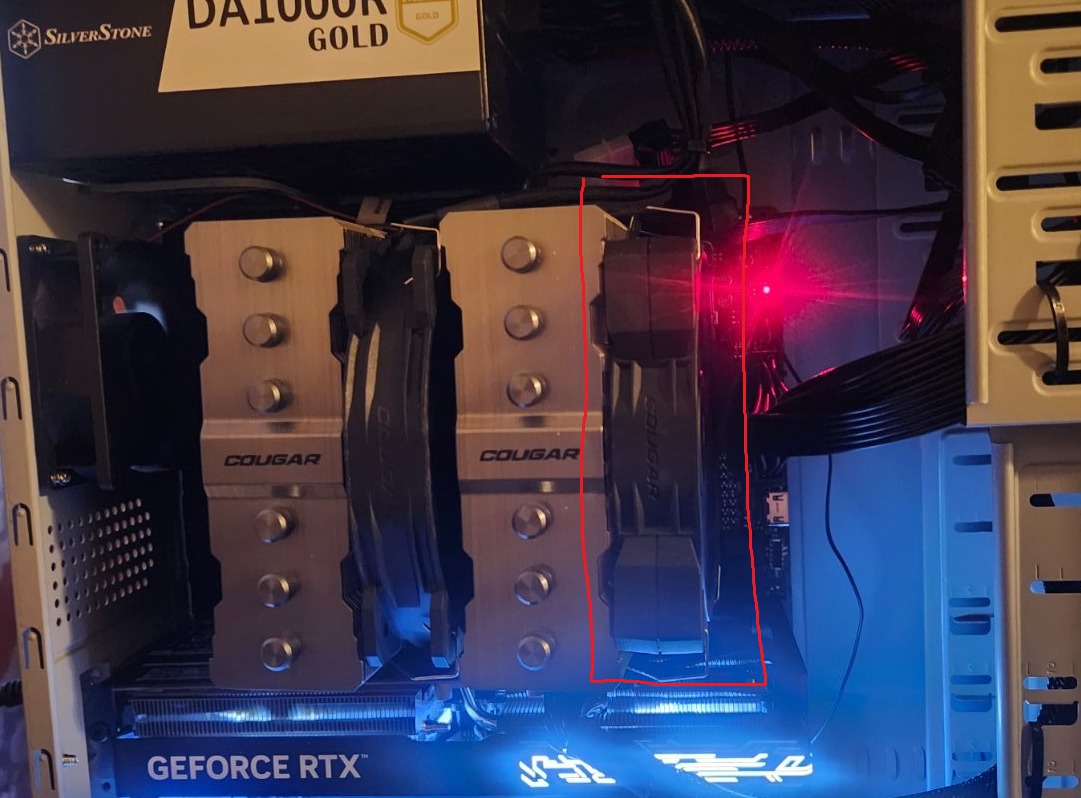
The DRAM indicator light signifies an issue with the RAM modules. As an initial troubleshooting step, I recommend reseating the RAM. Begin by removing the fan assembly shown in the image above. Next, locate the RAM sockets and press down on the retaining clips at the top of each socket to release the modules. Carefully remove the RAM sticks, noting their original positions. When reinstalling, ensure the pins on the modules align correctly with the socket notches. Apply firm, even pressure to seat the RAM until the retaining clips snap securely into place around the modules. -
Hibernator PC
Macsusc replied to Cat_Dad8311's topic in PC Giveaway Community's Build & Technical Help
Pop this fan off, you just need to pull the metal clamps on each side of it, should come off easily, you should see some ram under there
-
Hibernator PC
Cat_Dad8311 replied to Cat_Dad8311's topic in PC Giveaway Community's Build & Technical Help
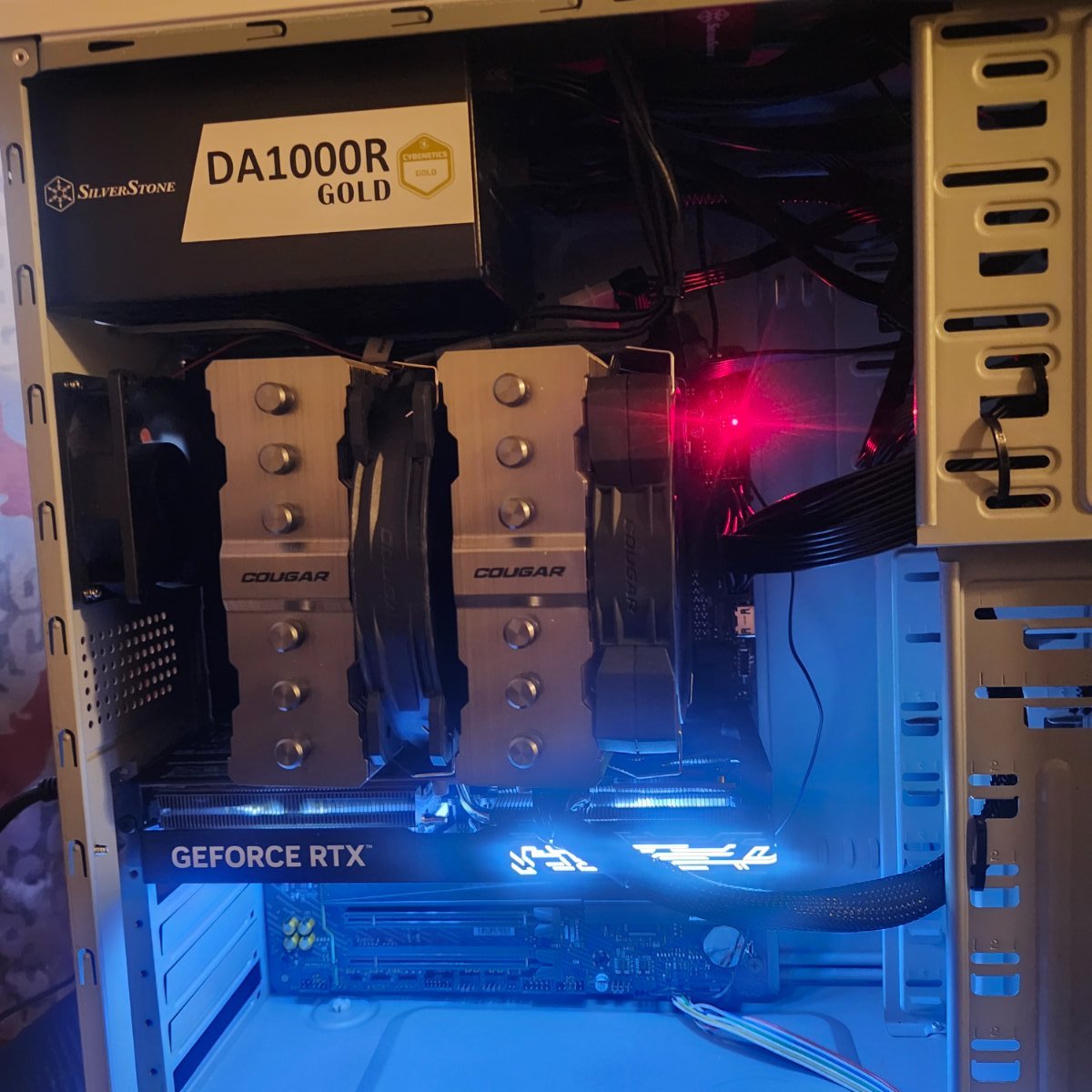
And as far as the ram i think its behind the cooling fans and things and with my current health and condition im not gonna try and remove anything to get to it I have to many spams in my hands to trust myself -
Hibernator PC
Cat_Dad8311 replied to Cat_Dad8311's topic in PC Giveaway Community's Build & Technical Help
Yeah I figured i wouldn't touch or do anything else till waffle says so as he replies ill try things and it will get there -
Hibernator PC
Macsusc replied to Cat_Dad8311's topic in PC Giveaway Community's Build & Technical Help
Have you tried reseating the RAM? How about trying to boot with just one RAM stick and then just one of the other ones? They also need to be in the right slots based on the motherboards manual, sometimes that means A2 + B2 not A1 + A2. I'll let Waffles advise further though 🙂 thanks guys. -
Hibernator PC
Cat_Dad8311 replied to Cat_Dad8311's topic in PC Giveaway Community's Build & Technical Help
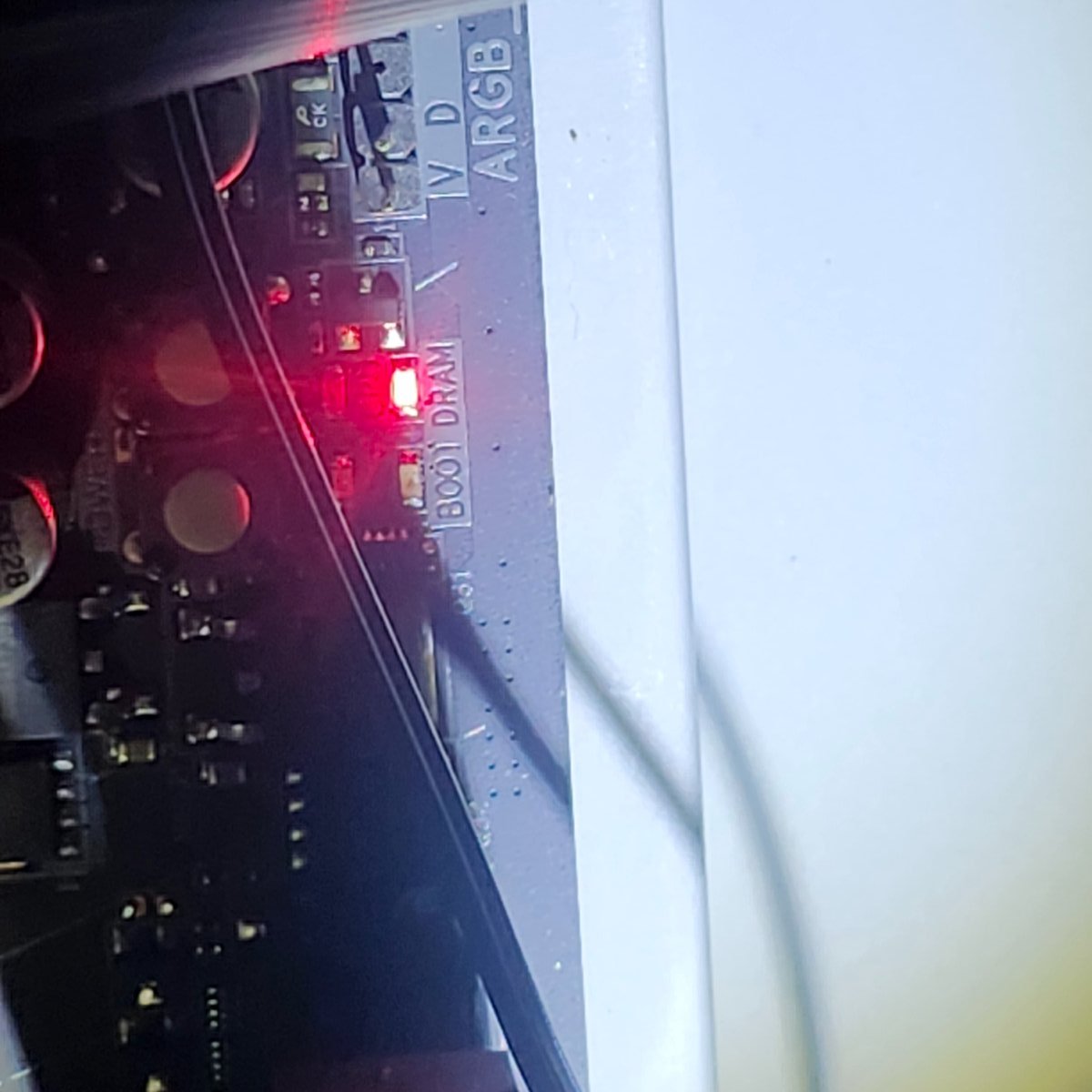
Here's a better picture of the res light sorry about the forst one
-
Hibernator PC
Cat_Dad8311 replied to Cat_Dad8311's topic in PC Giveaway Community's Build & Technical Help
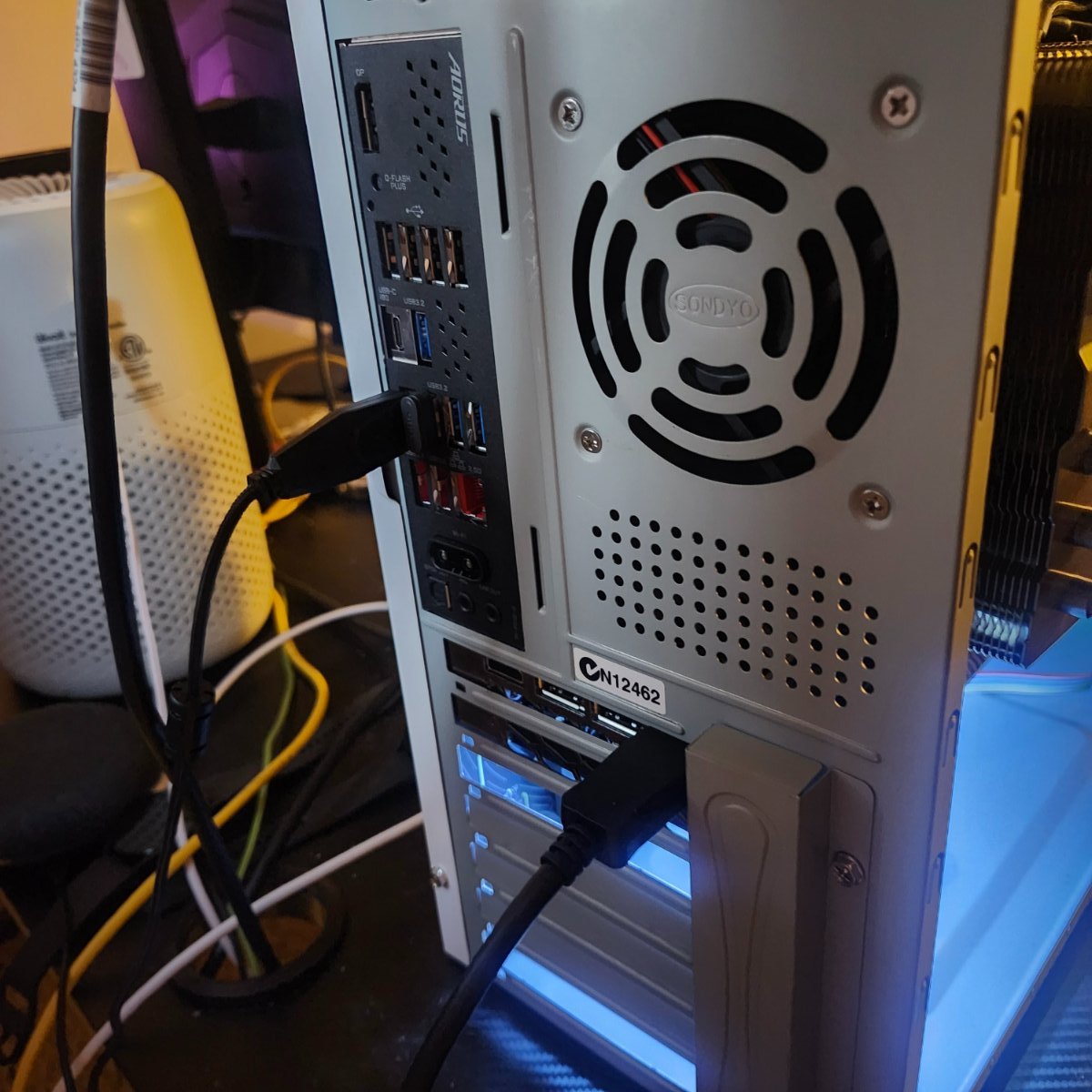
Here's the pics and yes I have it connected to the graphics card had to pop those plastic covers off and I think that red light is what yoir looking for -
Hibernator PC
Cat_Dad8311 replied to Cat_Dad8311's topic in PC Giveaway Community's Build & Technical Help
-
Hibernator PC
Cat_Dad8311 replied to Cat_Dad8311's topic in PC Giveaway Community's Build & Technical Help