.cropped.png.cb7ab81d512ea761a6e3e7ed551ad4a4.png)
New Update: Item Set Streaks Are Live

By Macsusc in System Update
· 264 views
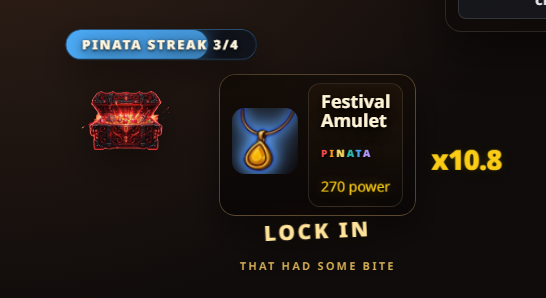
We’ve added a new mechanic to corpse scanning: Item Set Streaks.
Items now belong to sets, and if you keep hitting the same set across
item drops, your next item gets a power boost.
The first sets are:
- Standard
- High Noon
- Pinata
Current streak bonuses:
- 2nd matching set item: 1.5x
- 3rd: 2.0x
- 4th: 3.0x
After the 4th hit, the streak resets and the next item moves to a
different set.
What this means:
- item drops now have more identity
- matching set chains feel more rewarding
- there’s a new chase beyond just rarity and raw power
This also gives us a strong foundation for the future.
Sets are no longer just labels. As we keep building, different sets
can tie into:
- specific games
- themed events
- unique visuals
- set-specific mechanics
- progression systems
- future bonuses and effects
So while Standard, High Noon, and Pinata are the first wave, the
system is built to expand much further over time.
Get more info here:
https://www.thecrimsonmarket.com/playwithpurpose

Recommended Comments